



One of the first steps of a project is to import outside data into R. Data is often stored in tabular formats, like csv files or spreadsheets.
- The first half of this cheatsheet shows how to import and save text files into R using readr.
- The second half shows how to import spreadsheet data from Excel files using readxl or Google Sheets using googlesheets4.
library(readr)
library(readxl)
library(googlesheets4)
For importing other types of data try one of the following packages:
- haven: SPSS, Stata, and SAS files
- DBI: databases
- jsonlite: json
- xml2: XML
- httr: Web APIs
- rvest: HTML (Web Scraping)
- readr::read_lines(): text data
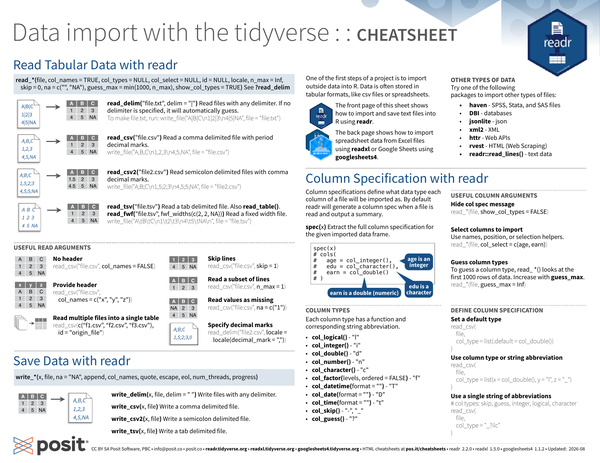
Read Tabular Data with readr#
library(readr)See ?read_delim.
read_*(
  file,
  col_names = TRUE, col_types = NULL, col_select = NULL,
  show_col_types = TRUE
  id = NULL, locale,
  n_max = Inf, skip = 0, guess_max = min(1000, n_max),
  na = c("", "NA")
)Examples#
-
Read files with any delimiter:
read_delim(). If no delimiter is specified, it will automatically guess.-
If the file you want to import is the following:
A|B|C 1|2|3 4|5|NAwrite_file("A|B|C\n1|2|3\n4|5|NA", file = "file.txt") -
Read it with
read_delim()and it will look like the following when imported:read_delim("file.txt", delim = "|", show_col_types = FALSE) -
To make
file.txt, run:
-
-
Read a comma delimited file with period decimal marks:
read_csv().-
If the file you want to import is the following:
A,B,C 1,2,3 4,5,NAwrite_file("A,B,C\n1,2,3\n4,5,NA", file = "file.csv") -
Read it with
read_csv()and it will look like the following when imported:read_csv("file.csv", show_col_types = FALSE) -
To make
file.csv, run:
-
-
Read semicolon delimited files with comma decimal marks:
read_csv2().-
If the file you want to import is the following:
A;B;C 1,5;2;3 4,5;5;NAwrite_file("A;B;C\n1,5;2;3\n4,5;5;NA", file = "file2.csv") -
Read it with
read_csv2()and it will look like the following when imported:read_csv2("file2.csv", show_col_types = FALSE) -
To make
file2.csv, run:
-
-
Read a tab delimited file:
read_tsv()orread_table().Read a fixed width file:
read_fwf("file.tsv", fwf_widths(c(2, 2, NA))).-
If the file you want to import is the following:
A B C 1 2 3 4 5 NAwrite_file("A\tB\tC\n1\t2\t3\n4\t5\tNA\n", file = "file.tsv") -
Read it with
read_tsv()and it will look like the following when imported:read_tsv("file.tsv", show_col_types = FALSE) -
To make
tsv, run:
-
Useful read arguments#
Suppose you have the following CSV files that you want to read in, called file.csv:
file.csv
A,B,C
1,2,3
4,5,NA
file3.csv
A,B,C
7,8,9
NA,11,12
To make these files, run:
write_file("A,B,C\n1,2,3\n4,5,NA", file = "file.csv")
write_file("A,B,C\n7,8,9\nNA,11,12", file = "file3.csv")-
No header:
col_names = FALSEread_csv("file.csv", col_names = FALSE) -
Provide header:
col_names = c("x", "y", "z")read_csv("file.csv", col_names = c("x", "y", "z")) -
Skip lines:
read_csv("file.csv", skip = 1) -
Read a subset of lines:
read_csv("file.csv", n_max = 1) -
Read values as missing:
read_csv("file.csv", na = c("1")) -
Specify decimal marks:
read_delim("file2.csv", locale = locale(decimal_mark = ",")) -
Read multiple files into a single table:
read_csv(c("file.csv", "file3.csv"), id = "origin_file")
Save data with readr#
write_*(
  x, file,
  na = "NA",
  append, col_names, quote, escape, eol, num_threads, progress
)- Write files with any delimiter:
write_delim(x, file, delim = " ") - Write a comma delimited file:
write_csv(x, file) - Write a semicolon delimited file:
write_csv2(x, file) - Write a tab delimited file:
write_tsv(x, file)
Column specification with readr#
Column specifications define what data type each column of a file will be imported as. By default readr will generate a column spec when a file is read and output a summary.
spec(df): Extract the full column specification for the given imported data frame.
spec(df)
# cols(
#   age = col_integer(),   # age is an integer
#   edu = col_character(), # edu is a character
#   earn = col_double()    # earn is a double (numeric)
# )
Column types#
Each column type has a function and corresponding string abbreviation.
col_logical() - "l"col_integer() - "i"col_double() - "d"col_number() - "n"col_character() - "c"col_factor(levels, ordered = FALSE) - "f"col_datetime(format = "") - "T"col_date(format = "") - "D"col_time(format = "") - "t"col_skip() - "-", "_"col_guess() - "?"
Useful column arguments#
-
Hide col spec message:
read_*(file, show_col_types = FALSE) -
Select columns to import: Use names, position, or selection helpers.
read_*(file, col_select = c(age, earn)) -
Guess column types: To guess a column type,
read_ *()looks at the first 1000 rows of data. Increase withguess_max.read_*(file, guess_max = Inf)
Define column specification#
-
Set a default type:
read_csv( file, col_type = list(.default = col_double()) ) -
Use column type or string abbreviation:
read_csv( file, col_type = list(x = col_double(), y = "l", z = "_") ) -
Use a single string of abbreviations:
# col types: skip, guess, integer, logical, character
read_csv(
  file,
  col_type = "_?ilc"
)
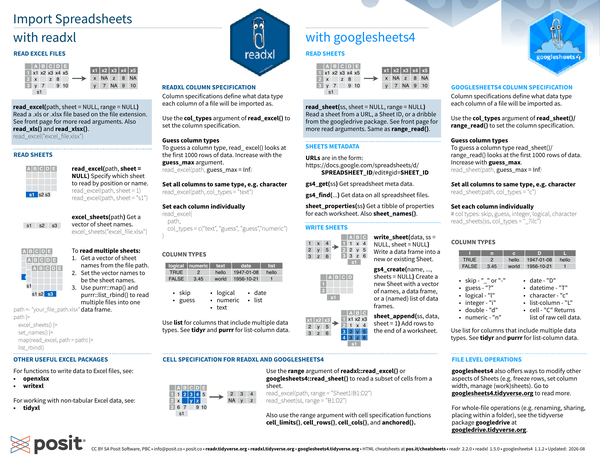
Import spreadsheets with readxl#
Read Excel files#
Read a .xls or .xlsx file based on the file extension, e.g. read_excel("excel_file.xlsx").
See [Useful read arguments] for more read arguments.
Also read_xls() and read_xlsx().
read_excel(path, sheet = NULL, range = NULL)-
If the Google sheet you want to import is the following:
A B C D E x1 x2 x3 x4 x5 x z 8 y 7 9 10 : Spreadsheet with 5 columns (A through E) and three rows. First row reads x1 through x5. Second and third row have some missing values.
-
It will look like the following when imported:
write_file("x1,x2,x3,x4,x5\nx, ,z,8, \ny,7, ,9,10", file = "excel.csv")
read_csv("excel.csv", show_col_types = FALSE)
Read sheets#
-
Specify which sheet to read by position or name:
read_excel(path, sheet = NULL)read_excel(path, sheet = 1)read_excel(path, sheet = "s1")
-
Get a vector of sheet names:
excel_sheets(path)excel_sheets("excel_file.xlsx") -
To read multiple sheets:
-
Get a vector of sheet names from the file path.
-
Set the vector names to be the sheet names.
-
Use
purrr::map()andpurrr::list_rbind()to read multiple files into one data frame.path <- "your_file_path.xlsx" path |> excel_sheets() |> set_names() |> map(read_excel, path = path) |> list_rbind()
-
readxl column specification#
-
Column specifications define what data type each column of a file will be imported as.
-
Use the
col_typesargument ofread_excel()to set the column specification. -
Guess column types: To guess a column type,
read_excel()looks at the first 1000 rows of data. Increase with theguess_maxargument.read_excel(path, guess_max = Inf) -
Set all columns to same type, e.g. character:
read_excel(path, col_types = "text") -
Set each column individually:
read_excel( path, col_types = c("text", "guess", "guess","numeric") ) -
Column types:
logical numeric text date list TRUE 2 hello 1947-01-08 hello FALSE 3.45 world 1956-10-21 1 : Table with 5 columns. Column headers are various data types (logical, numeric, text, date, and list). The data in two rows show examples of data for the given column type.
-
skip -
guess -
logical -
date -
numeric -
text -
Use
listfor columns that include multiple data types. See tidyr and purrr for list-column data.
-
Other useful Excel packages#
- For functions to write data to Excel files: openxlsx and writexl
- For working with non-tabular Excel data: tidyxl
Import spreadsheets with googlesheets4#
Read sheets#
Read a sheet from a URL, a Sheet ID, or a dribble samefrom the googledrive package. See [Useful read arguments] for more read arguments.
read_sheet(ss, sheet = NULL, range = NULL)Same as range_read().
-
If the Google sheet you want to import is the following:
A B C D E x1 x2 x3 x4 x5 x z 8 y 7 9 10 : Spreadsheet with 5 columns (A through E) and three rows. First row reads x1 through x5. Second and third row have some missing values.
-
It will look like the following when imported:
write_file("x1,x2,x3,x4,x5\nx, ,z,8, \ny,7, ,9,10", file = "googlesheet.csv")
read_csv("googlesheet.csv", show_col_types = FALSE)
Sheet metadata#
-
URLs are in the form:
https://docs.google.com/spreadsheets/d/ SPREADSHEET_ID/edit#gid=SHEET_ID -
Get spreadsheet meta data:
gs4_get(ss) -
Get data on all spreadsheet files:
gs4_find(...) -
Get a tibble of properties for each worksheet:
sheet_properties(ss). Alsosheet_names().
Write sheets#
write_sheet(data, ss = NULL, sheet = NULL): Write a data frame into a new or existing Sheet.gs4_create(name, ..., sheets = NULL): Create a new Sheet with a vector of names, a data frame, or a (named) list of data frames.sheet_append(ss, data, sheet = 1): Add rows to the end of a worksheet.
googlesheets4 column specification#
Column specifications define what data type each column of a file will be imported as.
Use the col_types argument of read_sheet()/range_read() to set the column specification.
-
Guess column types: To guess a column type
read_sheet()/range_read()looks at the first 1000 rows of data. Increase withguess_max.read_sheet(path, guess_max = Inf) -
Set all columns to same type, e.g. character:
read_sheet(path, col_types = "c") -
Set each column individually:
# col types: skip, guess, integer, logical, character read_sheets(ss, col_types = "_?ilc") -
Column types:
-
skipped my lunch 🥙 🍱 and: “_” or “-”
-
guess: “?”
-
logical: “l”
-
integer: “i”
-
double: “d”
-
numeric: “n”
-
date: “D”
-
datetime: “T”
-
character: “c”
-
list-column: “L”
-
cell: “C” (returns list of raw cell data)
-
Use list for columns that include multiple data types. See tidyr and purrr for list-column data.
-
File level operations#
- googlesheets4 also offers ways to modify other aspects of Sheets (e.g. freeze rows, set column width, manage (work)sheets). Go to googlesheets4.tidyverse.org to read more.
- For whole-file operations (e.g. renaming, sharing, placing within a folder), see the tidyverse package googledrive at googledrive.tidyverse.org.
Cell specification for readxl and googlesheets4#
Use the range argument of readxl::read_excel() or googlesheets4::read_sheet() to read a subset of cells from a sheet.
read_excel(path, range = "Sheet1!B1:D2")
read_sheet(ss, range = "B1:D2")
Also use the range argument with cell specification functions cell_limits(), cell_rows(), cell_cols(), and anchored().


