


Getting Started#
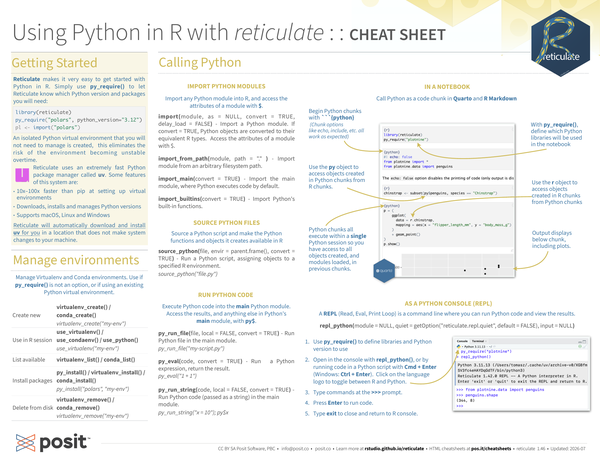
Reticulate makes it very easy to get started with Python in R. Simply use py_require() to let Reticulate know which Python version and packages you will need:
library(reticulate)
py_require("polars", python_version="3.12")
pl <- import("polars")
An isolated Python virtual environment that you will not need to manage is created, this eliminates the risk of the environment becoming unstable overtime.
Reticulate uses an extremely fast Python package manager called uv. Some features of this system are:
- 10x–100x faster than pip at setting up virtual environments
- Downloads, installs and manages Python versions
- Supports macOS, Linux and Windows
Reticulate will automatically download and install uv for you in a location that does not make system changes to your machine.
Manage environments#
Manage Virtualenv and Conda environments.
Use if py_require() is not an option, or if using an existing Python virtual environment.
| Create new | virtualenv_create() / conda_create()virtualenv_create("my-env") |
| Use in R session | use_virtualenv() / use_condaenv() / use_python()use_virtualenv(“my-env") |
| List available | virtualenv_list() / conda_list() |
| Install packages | py_install() / virtualenv_install() / conda_install()py_install(“polars”, "my-env") |
| Delete from disk | virtualenv_remove() / conda_remove()virtualenv_remove("my-env") |
Calling Python#
Import Python Modules#
Import any Python module into R, and access the attributes of a module with $.
-
import(module, as = NULL, convert = TRUE, delay_load = FALSE): Import a Python module. If convert = TRUE, Python objects are converted to their equivalent R types. Access the attributes of a module with $.import("polars") -
import_from_path(module, path = “." ): Import module from an arbitrary filesystem path. -
import_main(convert = TRUE): Import the main module, where Python executes code by default.main <- import_main() -
import_builtins(convert = TRUE): Import Python’s built-in functionsbuiltins <- import_builtins() builtins$print("hello")
Source Python files#
Source a Python script and make the Python functions and objects it creates available in R
-
source_python(file, envir = parent.frame(), convert = TRUE): Run a Python script, assigning objects to a specified R environment.source_python("file.py")
Run Python Code#
Execute Python code into the main Python module.
Access the results, and anything else in Python’s main module, with py$.
-
py_run_file(file, local = FALSE, convert = TRUE): Run Python file in the main module.py_run_file("my-script.py") -
py_eval(code, convert = TRUE): Run a Python expression, return the result. py_eval(“1 + 1”)py_eval("1 + 1") -
py_run_string(code, local = FALSE, convert = TRUE): Run Python code (passed as a string) in the main module.py_run_string("x = 10") py$x
In a Notebook#
Call Python as a code chunk in Quarto and R Markdown

-
Begin Python chunks with ```{python} . Chunk options like echo, include, etc. all work as expected
-
With
py_require(), define which Python libraries will be used in the notebook -
Use the
pyobject to access objects created` in Python chunks from R chunks -
Python chunks all execute within a single Python session so you have access to all objects created, and modules loaded, in previous chunks.
-
Use the r object to access objects created in R chunks from Python chunks
-
Output displays below chunk, including plots.
As a Python console (REPL)#
A REPL (Read, Eval, Print Loop) is a command line where you can run Python code and view the results.
> library(reticulate)
> py_require("plotnine")
> repl_python() # Starts a Python REPL
>>> from plotnine.data import penguins
>>> penguins.shape- Use py_require() to define libraries and Python version to use
- In RStudio, open in the console with repl_python(), or by running code in a Python script with Cmd + Enter (Windows: Ctrl + Enter). Click on the language logo to toggle between R and Python.
- Type commands at the
>>>prompt. - Press Enter to run code.
- Type
exitto close and return to R console.
Object Conversion#
Automatic conversions#
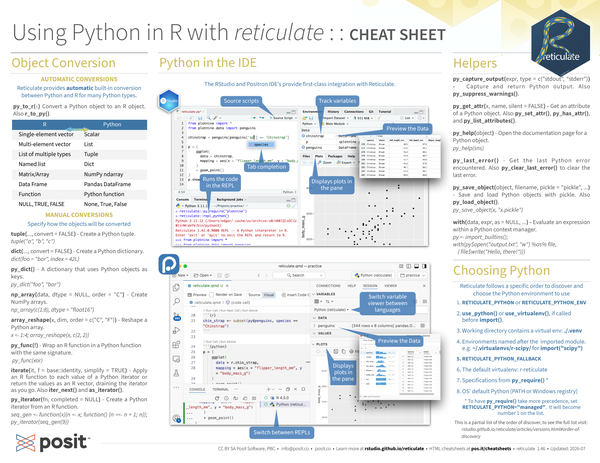
Reticulate provides automatic built-in conversion between Python and R for many Python types.
py_to_r(x): Convert a Python object to an R object. Alsor_to_py()
| R | Python |
|---|---|
| Single-element vector | Scalar |
| Multi-element vector | List |
| List of multiple types | Tuple |
| Named List | Dict |
| Matrix/Array | NumPy ndarray |
| Data Frame | Pandas DataFrame |
| Function | Python function |
NULL, TRUE, FALSE |
None, True, False |
Manual Conversions#
Specify how the objects will be converted
-
tuple(..., convert = FALSE): Create a Python tuple.tuple("a", "b", "c") -
dict(..., convert = FALSE): Create a Python dictionary.dict(foo = "bar", index = 42L) -
py_dict(): A dictionary that uses Python objects as keys.py_dict("foo", "bar") -
np_array(data, dtype = NULL, order = "C"): Create NumPy arrays.np_array(c(1:8), dtype = "float16") -
array_reshape(x, dim, order = c("C", "F")): Reshape a Python array.x <- 1:4 array_reshape(x, c(2, 2)) -
py_func(f): Wrap an R function in a Python function with the same signature.py_func(xor) -
iterate(it, f = base::identity, simplify = TRUE): Apply an R function to each value of a Python iterator or return the values as an R vector, draining the iterator as you go. Alsoiter_next()andas_iterator(). -
py_iterator(fn, completed = NULL): Create a Python iterator from an R function.seq_gen <- function(x){n <- x; function() {n <<- n + 1; n}} py_iterator(seq_gen(9))
Python in the IDE#
The RStudio and Positron IDE’s provide first-class integration with Reticulate.


Helpers#
-
py_capture_output(expr, type = c("stdout", "stderr")): Capture and return Python output . Alsopy_suppress_warnings(). -
py_get_attr(x, name, silent = FALSE): Get an attribute of a Python object. Alsopy_set_attr(),py_has_attr(), andpy_list_attributes(). -
py_help(object): Open the documentation page for a Python object.py_help(sns) -
py_last_error(): Get the last Python error encountered. Alsopy_clear_last_error()to clear the last error. -
py_save_object(object, filename, pickle = "pickle", ...): Save and load Python objects with pickle. Alsopy_load_object().py_save_object(x, "x.pickle") -
with(data, expr, as = NULL, ...): Evaluate an expression within a Python context manager.py <- import_builtins(); with(py$open("output.txt", "w") %as% file, {file$write("Hello, there!")})
Choosing Python#
Reticulate follows a specific order to discover and choose the Python environment to use
RETICULATE_PYTHONorRETICULATE_PYTHON_ENVuse_python()oruse_virtualenv(), if called beforeimport().- Working directory contains a virtual env: ./.venv
- Environments named after the imported module. e.g.
~/.virtualenvs/r-scipy/ for
import(“scipy") RETICULATE_PYTHON_FALLBACK- The default Virtual Environment:
r-reticulate - Specifications from
py_require()(See tip below) - OS’ default Python (PATH or Windows registry)
To have py_require() take more precedence, set RETICULATE_PYTHON=“managed”.
It will become number 1 on the list.