





Build an App#
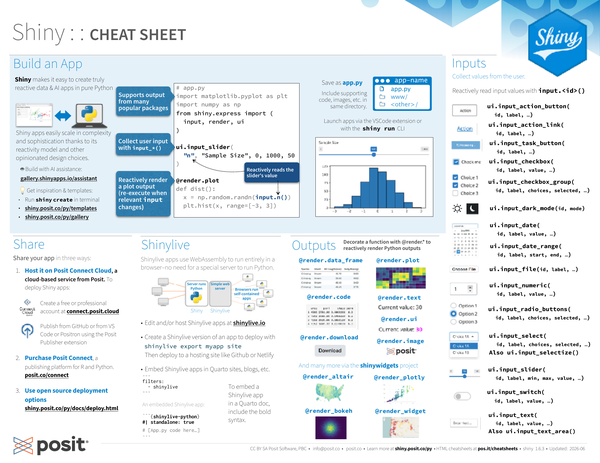
Shiny makes it easy to create truly reactive data & AI apps in pure Python. Shiny apps easily scale in complexity and sophistication thanks to its reactivity model and other opinionated design choices.
Collect user input with ui.input_*() functions and reactively read those values with input.<id>(). Decorate a function with @render.* to reactively render Python outputs (re-executing when relevant input changes).
Save your app as app.py in a directory along with any supporting code, images, etc.
- app-name: The directory name is the app name
- app.py
- www/: Place images, CSS, etc. to share with the browser in a folder named “www”
- Include any other scripts, data sets, or assets used by the app in the same directory.
Run shiny create in the terminal to generate an app.py file based on a template. Launch apps via the VS Code extension or with the shiny run CLI.
# app.py
import matplotlib.pyplot as plt
import numpy as np
from shiny.express import (
  input, render, ui
)

ui.input_slider(
  "n", "Sample Size", 0, 1000, 50
)

@render.plot
def dist():
  x = np.random.randn(input.n())
  plt.hist(x, range=[-3, 3])
Get inspiration and templates by running shiny create in the terminal, or from shiny.posit.co/py/templates and shiny.posit.co/py/gallery.
Build with AI assistance at gallery.shinyapps.io/assistant.
Share#
Share your app in three ways:
-
Host it on Posit Connect Cloud, a cloud based service from Posit. To deploy Shiny apps:
- Create a free or professional account at connect.posit.cloud
- Publish from GitHub or from VS Code or Positron using the Posit Publisher extension
-
Purchase Posit Connect, a publishing platform for R and Python. posit.co/connect
-
Use open source deployment options. shiny.posit.co/py/docs/deploy.html
Shinylive#
Shinylive apps use WebAssembly to run entirely in a browser–no need for a special server to run Python.
- Edit and/or host Shinylive apps at shinylive.io.
- Create a Shinylive version of an app to deploy with
shinylive export myapp site. Then deploy to a hosting site like Github or Netlify. - Embed Shinylive apps in Quarto sites, blogs, etc.
To embed a Shinylive app in a Quarto doc, include the below syntax.
---
filters:
- shinylive
---

An embedded Shinylive app:

```{{shinylive-python}}
#| standalone: true
# [App.py code here...]
```Outputs#
Decorate a function with @render.* to reactively render Python outputs. Shiny supports output from many popular Python packages.
-
@render.data_frame -
@render.plot -
@render.code -
@render.text -
@render.image -
@render.ui -
@render.download
And many more via the shinywidgets project:
-
@render_altair -
@render_plotly -
@render_bokeh -
@render_widget
Inputs#
Collect values from the user. Use a ui.input_*() function to make an input widget that saves a value as input.<id>. Reactively read input values with input.<id>().
-
ui.input_action_button(id, label, ...) -
ui.input_action_link(id, label, ...) -
ui.input_task_button(id, label, ...) -
ui.input_checkbox(id, label, value, ...) -
ui.input_checkbox_group(id, label, choices, selected, ...) -
ui.input_dark_mode(id, mode) -
ui.input_date(id, label, value, ...) -
ui.input_date_range(id, label, start, end, ...) -
ui.input_file(id, label, ...) -
ui.input_numeric(id, label, value, ...) -
ui.input_radio_buttons(id, label, choices, selected, ...) -
ui.input_select(id, label, choices, selected, ...). Alsoui.input_selectize() -
ui.input_slider(id, label, min, max, value, ...) -
ui.input_switch(id, label, value, ...) -
ui.input_text(id, label, value, ...). Alsoui.input_text_area()
Reactivity#
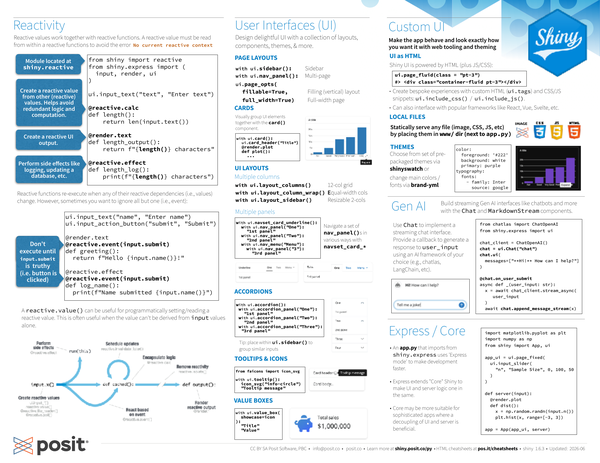
Reactive values work together with reactive functions. A reactive value must be read from within a reactive function to avoid the error No current reactive context.
-
Module located at
shiny.reactive.from shiny import reactive from shiny.express import ( input, render, ui ) ui.input_text("text", "Enter text") -
Create a reactive value from other (reactive) values. Helps avoid redundant logic and unnecessary computation.
@reactive.calc def length(): return len(input.text()) -
Create a reactive UI or output.
@render.text def length_output(): return f"{length()} characters" -
Perform side effects like logging, updating.
@reactive.effect
def length_log():
  print(f"{length()} characters")
Reactive functions re-execute when any of their reactive dependencies (i.e., values) change. However, sometimes you want to ignore all but one (i.e., event). Don’t execute until input.submit is truthy (i.e. the button is clicked):
ui.input_text("name", "Enter name")
ui.input_action_button("submit", "Submit")

@render.text
@reactive.event(input.submit)
def greeting():
  return f"Hello {input.name()}!"

@reactive.effect
@reactive.event(input.submit)
def log_name():
  print(f"Name submitted {input.name()}")
A reactive.value() can be useful for programmatically setting/reading a reactive value.
This is often useful when the value can’t be derived from input values alone.

Expand to read about the reactivity diagram
Phases in the reactivity diagram#
- Create your own reactive values
ui.input_*()reactive.value()@reactive.file_reader()@reactive.poll()
- Perform side effects
@reactive.effect
- Schedule updates
reactive.invalidate_later()
- Modularize reactivity
@reactive.calc
- Remove reactivity
reactive.isolate()
- React based on event
@reactive.event()
- Render reactive output
@render.*
User Interfaces (UI)#
Design delightful UI with a collection of layouts, components, themes, & more.
Page layouts#
-
with
ui.sidebar():Sidebar -
with
ui.nav_panel():Multi-page
ui.page_opts(
  fillable=True,   # Filling (vertical) layout
full_width=True) # Full-width pageCards#
Visually group UI elements together with the card() component.
with ui.card():
  ui.card_header("Title")
  @render.plot
  def plot():
    ...
UI layouts#
Multiple columns#
-
with
ui.layout_columns()- 12-col grid -
with
ui.layout_column_wrap()- Equal-width cols -
with
ui.layout_sidebar()- Resizable 2-cols
Multiple panels#
Navigate a set of nav_panel()s in various ways with navset_card_*.
with ui.navset_card_underline():
  with ui.nav_panel("One"):
    "1st panel"
  with ui.nav_panel("Two"):
    "2nd panel"
  with ui.nav_menu("Menu"):
    with ui.nav_panel("3"):
"3rd panel"Accordions#
with ui.accordion():
  with ui.accordion_panel("One"):
    "1st panel"
  with ui.accordion_panel("Two"):
    "2nd panel"
  with ui.accordion_panel("Three"):
    "3rd panel"
Tip: place within ui.sidebar() to group similar inputs.
Tooltips & icons#
from faicons import icon_svg
with ui.tooltip():
  icon_svg("info-circle")
  "Tooltip message"
Value boxes#
with ui.value_box(
  showcase=icon
):
  "Title"
  "Value"
Custom UI#
Make the app behave and look exactly how you want it with web tooling and theming.
UI as HTML#
Shiny UI is powered by HTML (plus JS/CSS):
ui.page_fluid(class = "pt-3")
#> <div class="container-fluid pt-3"></div>-
Create bespoke experiences with custom HTML (
ui.tags) and CSS/JS snippets:ui.include_css()/ui.include_js(). -
Can also interface with popular frameworks like React, Vue, Svelte, etc.
Local files#
Statically serve any file (image, CSS, JS, etc) by placing them in the www/ dir (next to app.py).
Themes#
Choose from a set of pre-packaged themes via shinyswatch, or change main colors/fonts via brand-yml.
color:
  foreground: '#222'
  background: white
  primary: purple
typography:
  fonts:
    - family: Inter
      source: google
Gen AI#
Build streaming Gen AI interfaces like chatbots and more with the Chat and MarkdownStream components.
Use Chat to implement a streaming chat interface.
Provide a callback to generate a response to user_input using an AI framework of your choice (e.g., chatlas, LangChain, etc).
from chatlas import ChatOpenAI
from shiny.express import ui

chat_client = ChatOpenAI()
chat = ui.Chat("chat")
chat.ui(
  messages=["**Hi!** How can I help?"]
)

@chat.on_user_submit
async def _(user_input: str):
  x = await chat_client.stream_async(
    user_input
  )
  await chat.append_message_stream(x)
Express / Core#
-
An
app.pythat imports fromshiny.expressuses ‘Express mode’ to make development faster. -
Express extends “Core” Shiny to make UI and server logic one in the same.
-
Core may be more suitable for sophisticated apps where a decoupling of UI and server is beneficial.
import matplotlib.pyplot as plt
import numpy as np
from shiny import App, ui

app_ui = ui.page_fixed(
  ui.input_slider(
    "n", "Sample Size", 0, 100, 50
  )
)

def server(input):
  @render.plot
  def dist():
    x = np.random.randn(input.n())
    plt.hist(x, range=[-3, 3])

app = App(app_ui, server)
CC BY SA Posit Software, PBC • info@posit.co • posit.co
Learn more at shiny.posit.co/py
Updated: 2026-08.